InShot Online Editor
InShot revolutionized mobile video editing. For millions of creators, it defined the "Social Video" aesthetic: A vertical video placed inside a square canvas, with a blurred version of the video filling the background. It made adding white text boxes and emojis accessible to everyone. But as creators grow, the mobile workflow breaks down. Editing a complex 10-minute video on a 6-inch screen destroys your neck, drains your battery, and clogs your storage.
Aesthetic Workspace
InShot vibe • Desktop power
Export Options
Built for transparent creative workflows
The Mobile Editing Ceiling
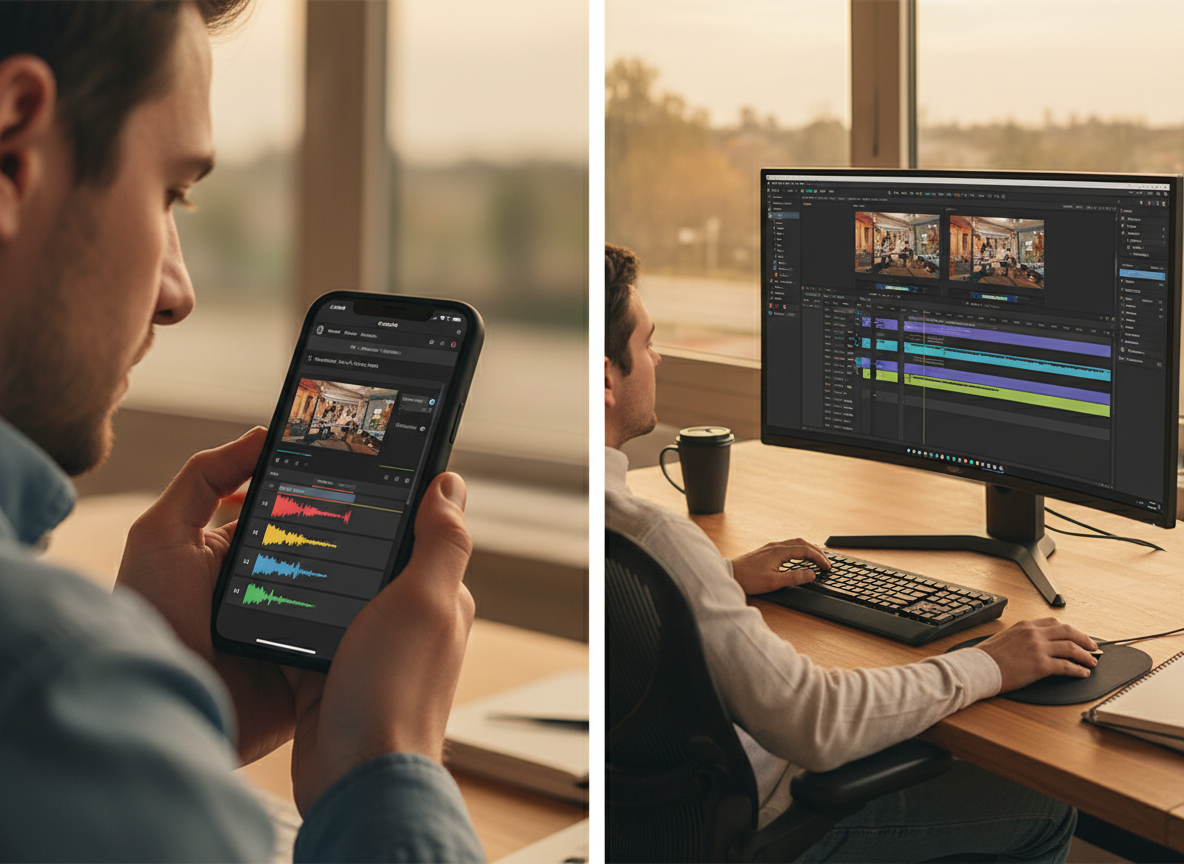
Mobile editing apps are fantastic for "Capture and Post" moments. If you are at a concert and want to post a 15-second clip to Instagram Stories, InShot is perfect. But "Content Creation" has evolved. It is no longer just random clips; it is storytelling.
Creators today are shooting 4K footage on Sony cameras, or compiling 20 different clips from different sources. Attempting to manage this on a phone is a nightmare. The "Mobile Editing Ceiling" is hit when: 1. Storage Full: "Cannot export video." The dreaded error message. Your phone has no space for the 4GB render. 2. Precision Failure: Trying to trim a clip to the exact beat of a song with a chubby thumb on a touch screen is frustrating. You miss the frame by 0.5s constantly. 3. Asset Management: You have a logo file, a font file, and a sound effect. Getting these onto your phone's specific folder structure is a multi-step friction point.
FlowVideo AI takes the philosophy of InShot—simple, canvas-based, sticker-heavy—and ports it to the Cloud. You get the familiar "Blur Background" button. You get the "Sticker" library. But you also get a timeline you can zoom into with a scroll wheel, keyboard shortcuts (J-K-L) for scrubbing, and unlimited cloud storage. It is the graduation ceremony for the mobile editor.
Why Use an InShot PC Alternative?
Creating the Social Aesthetic with Desktop Power.
Canvas Freedom (The InShot Blur)
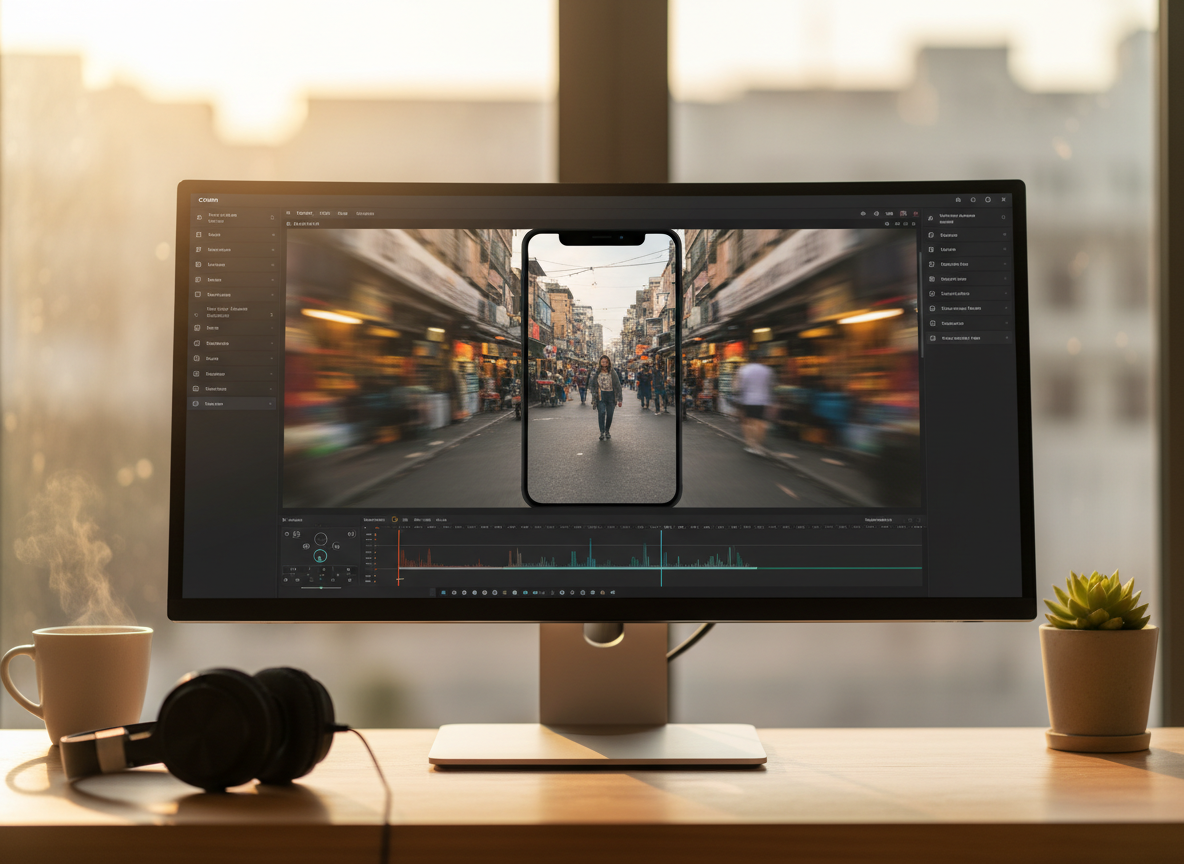
The defining look of early Instagram video was the "Letterbox Blur." You take a vertical video and put it on a square canvas. To fill the empty black bars on the sides, you duplicate the video, blow it up, and blur it. In professional software like Premiere, creating this effect takes 5 steps (Duplicate layer, Scale, Gaussian Blur effect, Send to Back). In FlowVideo, we replicated the InShot ease of use. It is a single button called "Smart Canvas Fill." You toggle it, and our engine automatically calculates the aspect ratio difference and applies the blur. You can even adjust the "Blur Radius" just like in the app. Switch from 1:1 (Square) to 4:5 (Portrait) to 9:16 (TikTok) instantly. The background adapts dynamically, saving you from rebuilding the scene.

Asset Management (The Cloud Architecture)
Phones are consumption devices, not storage servers. If you edit on InShot, your raw footage lives on your Camera Roll. If you delete the video from your Photos app to save space, your InShot project breaks (Media Missing). This is a terrifying way to work. FlowVideo is "Source Agnostic." You upload your files to our secure cloud. Once uploaded, you can delete them from your phone. We hold the master files. You can access them from your PC at work, your Laptop at home, or even your iPad. Your project is never tied to the physical storage of one fragile device.
Precision Text (The Keyboard Advantage)
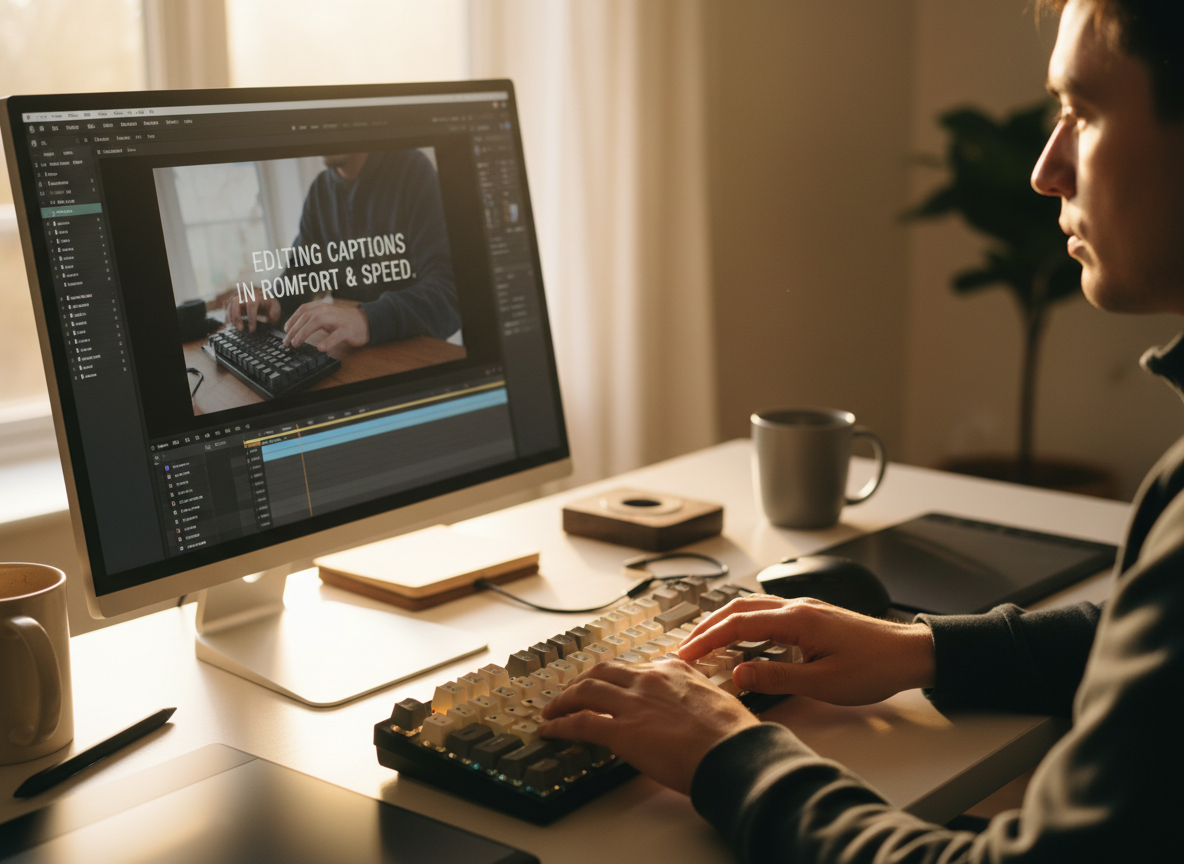
Typing captions on a virtual keyboard covers 50% of the screen. You can't see the video you are captioning! This leads to bad timing and typos. Typography is better on desktop. You have a physical keyboard. You can type 80 words per minute. Crucially, the video player is visibly separate from the text input box. You can see the video while you type. You can drag the text box with a mouse to align it to the "pixel-perfect center," using intelligent snap-guides that mobile apps often lack.
Sticker Stratification (Layer Management)
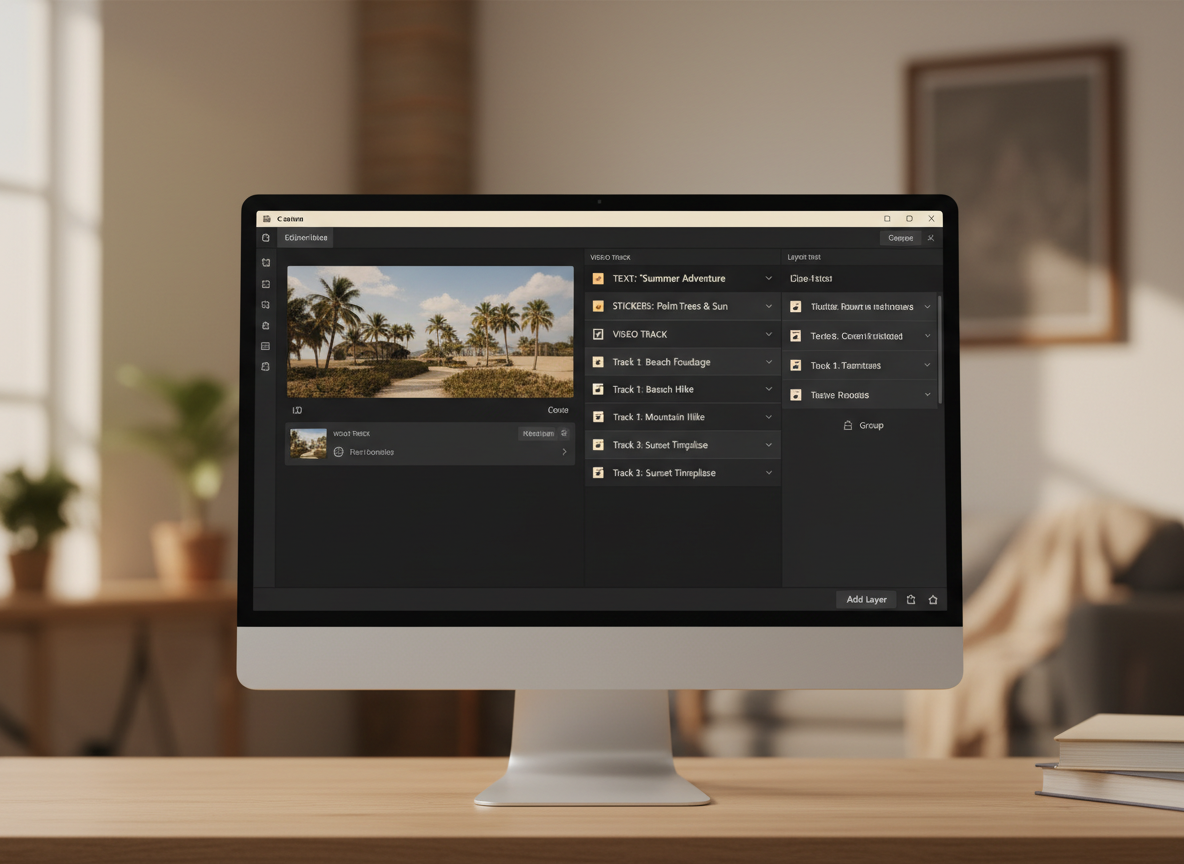
Have you ever tried to select a small text sticker on InShot, but your finger keeps selecting the background video instead? This "Fat Finger Problem" makes complex edits with multiple stickers/overlays impossible. We provide a visual "Layer List" (similar to Photoshop or After Effects) on the side of the timeline. You can see "Text Layer," "Emoji Layer," "Video Layer." You can click the "Lock" icon on the background so you don't accidentally move it. You can "Hide" a layer to see what's behind it. This stratification allows for complex collages that look like high-end motion graphics.
Mobile UX on Desktop
Porting the 'Touch' feel to the 'Click' world.
InShot App vs FlowVideo Web
| Feature | InShot (Mobile App) | FlowVideo (Web Editor) |
|---|---|---|
| Screen Real Estate | 6 inches (Phone) | 20-30 inches (Monitor) |
| Export Watermark | Yes (Free version) | No (Free version via credits) |
| Input Method | Touch (Virtual Keyboard) | Mouse + Physical Keyboard |
| Timeline Tracks | Single Track (Limited Overlays) | Multi-Track Unlimited |
| Music Sourcing | Good internal library | Searchable + Upload + Stock |
| Chroma Key | Basic | Advanced Color Picking |
| Collaboration | Impossible | Live Link Sharing |
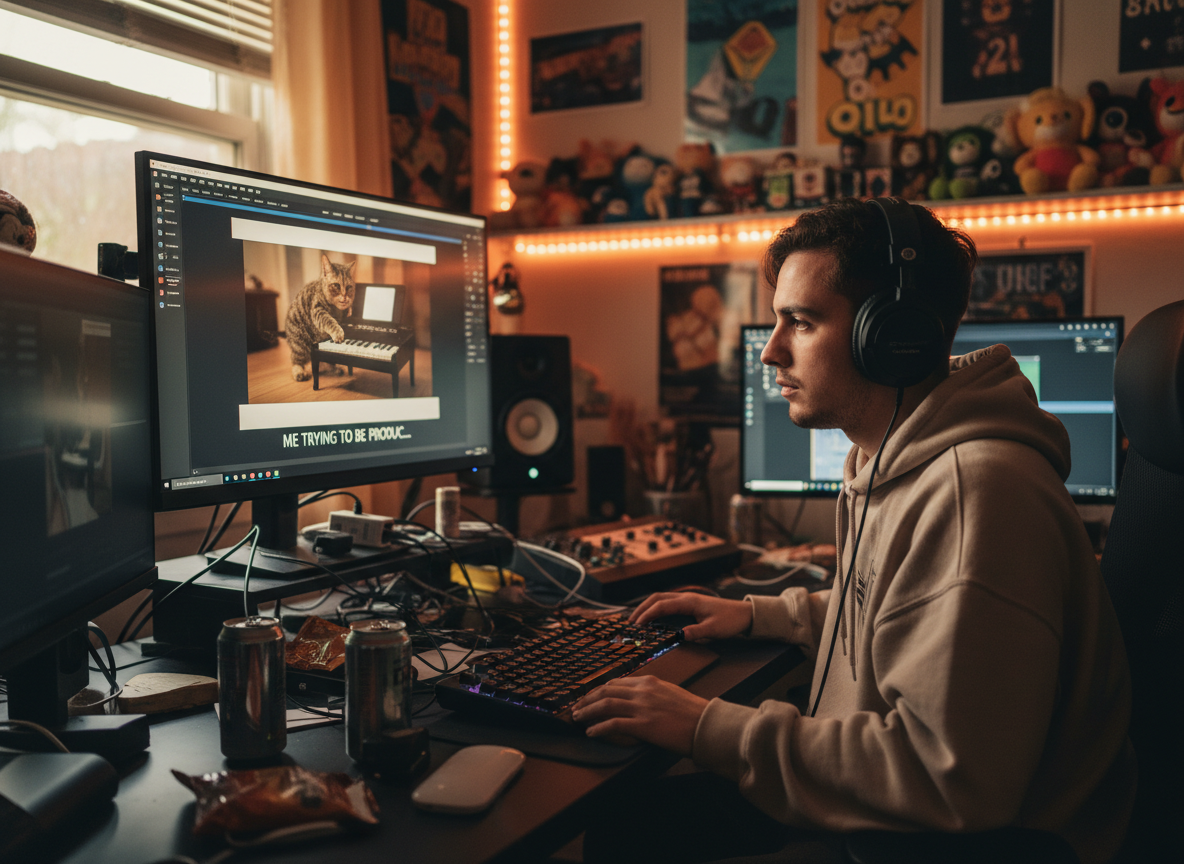
Instagram Meme Pages
Format: "The Twitter Screenshot Video." Style: Square video. White bar on top. Text of a tweet. Video playing below. Workflow: Create a template in FlowVideo with the white bar locked. Just drag new videos into the bottom slot. Change text. Export. 10x faster than phone.
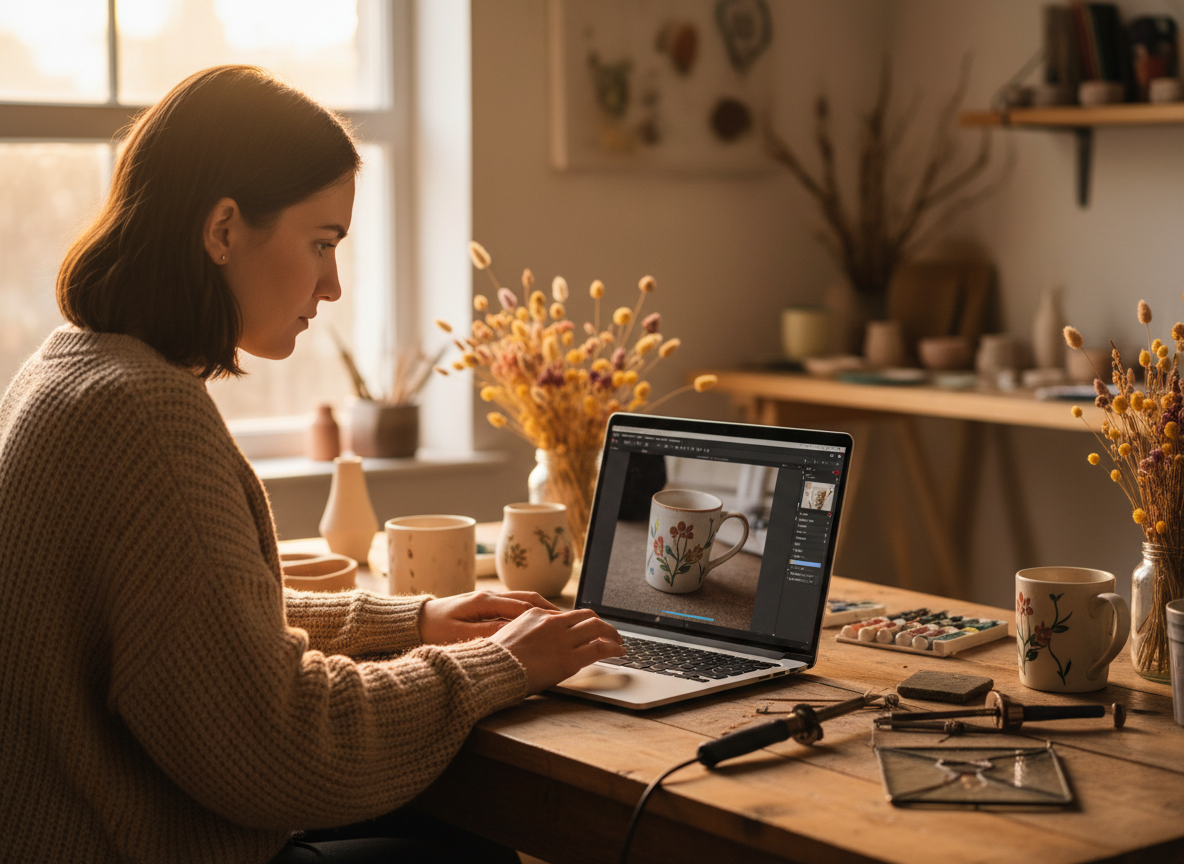
Online Sellers (Etsy/Shopify)
Format: "Product Showcase." Style: Square video (Fits listing grid). Workflow: Stitch photos + Video clips. Add a "Sale" vector sticker. Uses the "Ken Burns" photo motion to make static product shots look like video.
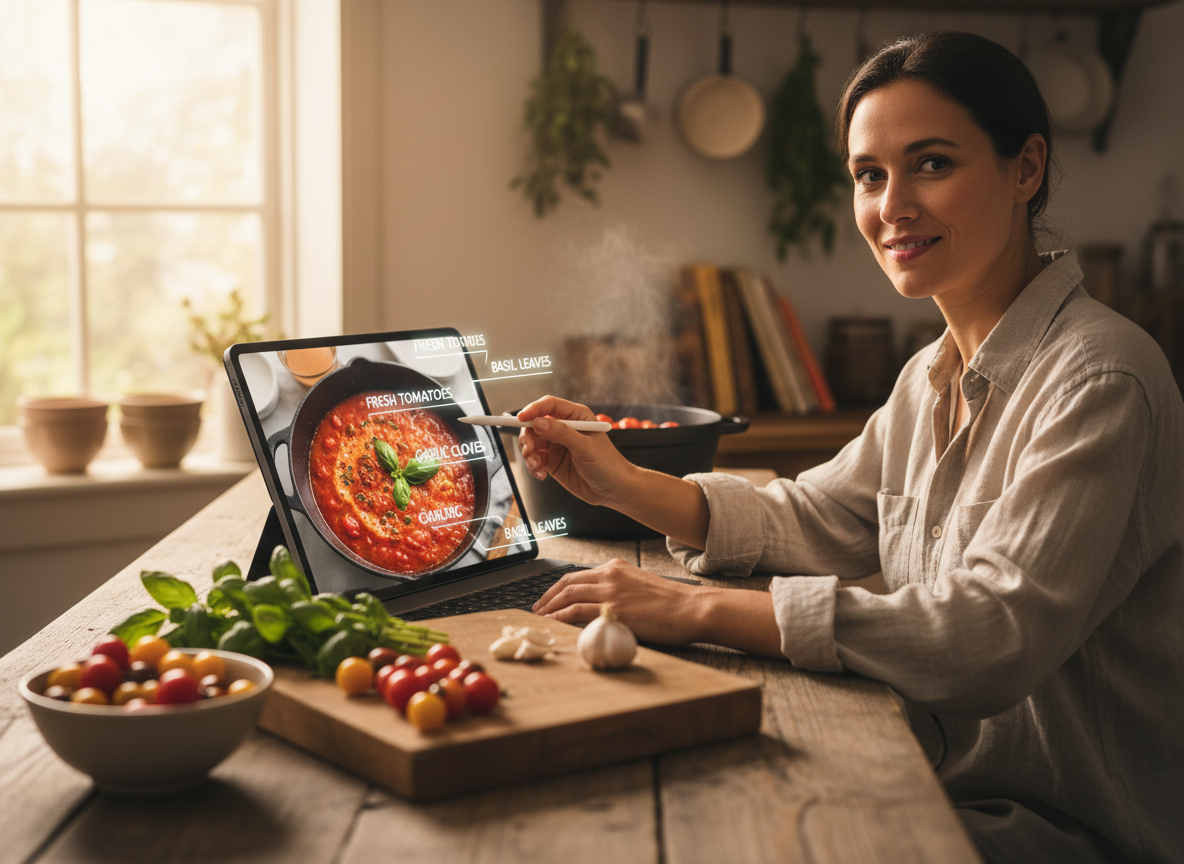
Food Bloggers
Format: "Top Down Tasty Style." Style: Sped up 2x. Text ingredients overlay ("1 Cup Flour"). Workflow: Using desktop allows precise syncing of "1 Cup Flour" text exactly when the flour hits the bowl. This frame-accurate timing is tedious on mobile but takes seconds with a mouse.
Frequently Asked Questions about InShot Alternative
Q: Do you have the exact same filters as InShot?
A: We cannot use the trademarked names, but we have scientifically matched equivalents. Our "Cinema" filter matches their "Cinema" look. Our "Glitch" effects are actually more robust and customizable.
Q: Can I use it on a Chromebook?
A: Yes! This is the #1 use case. Chromebooks run Android apps poorly. FlowVideo runs in the Chrome browser natively, making it the perfect "InShot for Chromebook" solution.
Q: Is it completely free?
A: We offer a generous Free Tier that includes clean exports (via monthly credits) and access to standard stickers. Pro features like 4K export and premium stock footage require a subscription.
Q: How do I do Picture in Picture (PIP)?
A: In FlowVideo, PIP is easy. Just drag a second video clip onto the Track Above your main video. It will appear on top. Resize it and move it to the corner. You can stick 10 videos on top of each other if you want.
Q: Can I reverse video?
A: Yes, select the clip and click the "Reverse" speed tool. It takes a moment to process the frames in reverse order, then plays backwards.
You grew up on InShot. You learned the basics of editing on the bus, in bed, and on the go. But you are a professional now. You have outgrown the phone screen. You need a workflow that respects your posture and your time. FlowVideo AI's InShot Online Editor is the graduation. Keep the fun, simple, sticker-rich workflow you love, but unlock the power, speed, and storage of the desktop cloud.