
AI Image Animator
Bring Still Photos to Life
Make your memories move. Transform static JPEGs into mesmerizing animated videos using the power of the ai image animator.
Trusted by creative teams at
Motion Brush
Draw motion on your photo (Cost: 60)
Canvas Empty
Introduction
There is a magical moment in the *Harry Potter* films where the characters look at a newspaper, and the black-and-white photographs are moving. The subjects wave, smile, and look around within the frame. For years, this "Living Photo" effect (technically known as a Cinemagraph) has been the holy grail of digital creatives. To achieve it manually required hours of planning: shooting high-resolution video on a tripod, masking layers in Adobe Photoshop, and carefully looping the timeline to hide the seam. It was a tedious, high-skill process reserved for high-budget perfume ads.
FlowVideo AI's **AI Image Animator** brings this wizardry to the web browser. You don't need video footage. You don't need a tripod. You just need a single still image. By uploading a photo—whether it's an old family portrait from the 1920s, a vacation photo of a waterfall, or a product shot you took on your iPhone—you can command the pixels to flow. You can make water cascade, clouds drift across the sky, fire flicker, or hair blow in the wind, all while keeping the rest of the image perfectly still.
This tool is not just a filter; it is a simulation engine. It allows you to "paint" motion vectors onto the canvas. You define the direction and the speed, and the AI calculates the physics, hallucinating the intervening frames to create a seamless, infinite loop. It turns a split second captured in time into an eternal moment.
Why Use an AI Image Animator? (Deep Dive)
The "Pattern Interrupt" in Social Media
The Technology Behind Image Animation
Sparse Optical Flow and Motion Vectors
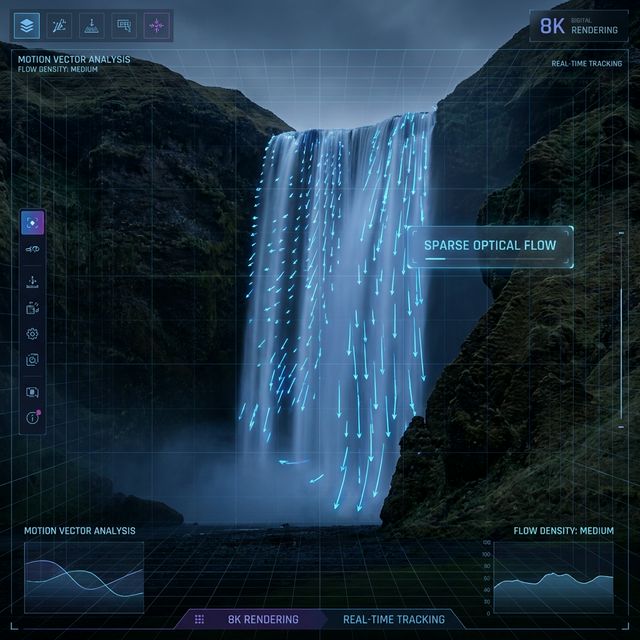
The core technology relies on "Optical Flow." When you draw an arrow on the image (using our Motion Brush), you are defining a "Motion Vector." The AI calculates a vector field for the pixels in that area. It says, "Shift these blue pixels 5 units to the right every frame." However, simple shifting stretches the image. Our AI uses "Sparse" flow to move only the texture (the water foam) while keeping the structure (the river shape) relatively stable.
Monocular Depth Estimation (MiDaS)
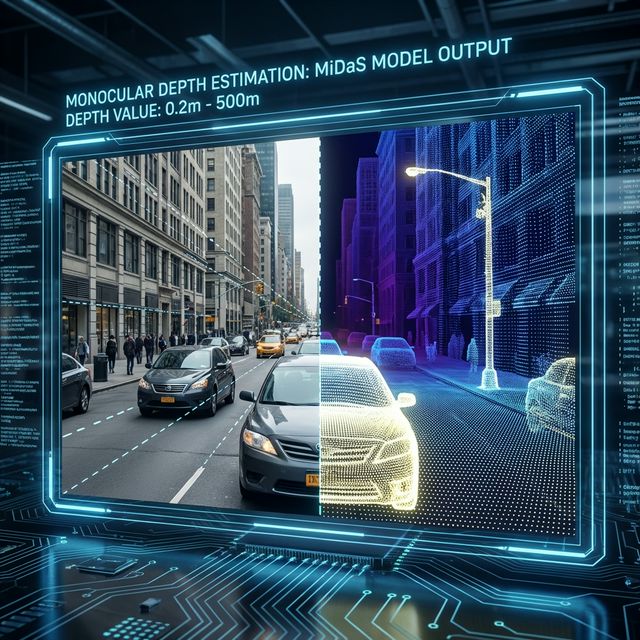
To make the movement look real, the AI must understand 3D depth. It uses a "Monocular Depth Estimation" model to guess the geometry of the scene. It knows that clouds in the sky are "far" and should move slowly (parallax effect), while the water in the foreground is "close" and should move faster. It knows that a rock in the middle of a river is a solid object that water should flow *around*, not *through*. This prevents the "flat paper" look where the whole image just slides sideways.
In-Painting (The "Behind" Problem)
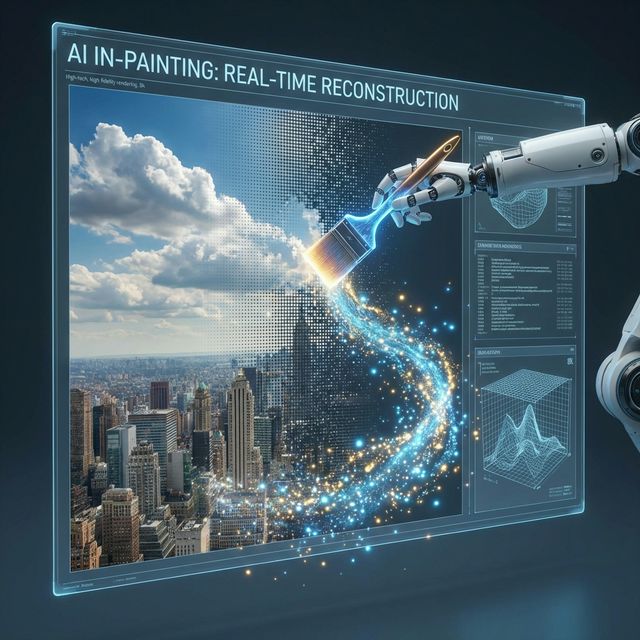
If you move a cloud to the right, what is behind the cloud? In a normal photo, there is nothing—just empty void pixels. Our AI uses "In-Painting" (similar to Photoshop's Generative Fill) to hallucinate the background. As the cloud moves, the AI constantly regenerates the blue sky behind it, ensuring there are no black holes or tearing artifacts in the animation. It creates new pixels in real-time.
Step-by-Step Guide: How to Animate Your Photo
Step 1: Upload and Analyze the Composition
Upload your high-resolution image. Microscope Detail: High contrast images work best. Ideal Subjects: Fluids (Water, Smoke, Coffee, Wine), Organic textures (Clouds, Grass, Hair, Fur), Particles (Snow, Rain, Sparkles). Difficult Subjects: Rigid structures (Buildings, Cars, Furniture), Walking people (limbs are hard to infer).
Step 2: The Motion Brush (Directional Flow)
Select the "Motion" tool (arrow icon). Microscope Detail: Click and drag to draw arrows. Flow Direction: Draw arrows in the direction of nature. For a waterfall, draw straight down. For a river going around a bend, draw a curved path of multiple arrows. Expert Tip: Draw smaller arrows near the banks (friction) and longer arrows in the center (speed). Density: You don't need to cover every pixel. A few strategic arrows define the flow for the whole region.
Step 3: The Anchor Tool (The Most Important Step)
If you don't anchor, the whole image will warp like melting wax. Microscope Detail: Select the "Anchor" or "Pin" tool. Pinning: Click to place dots around the edges of the moving area. If animating a river, place a line of dots along the rocky bank. This tells the AI: "Move the water, but do NOT move these rocks by even one pixel." Masking Brush: Alternatively, switch to the "Freeze Brush" and paint over the entire static area (the mountains, trees, and person) in red. This is safer and more precise than dots.
Step 4: Fine-Tuning Physics
Adjust the global sliders to sell the illusion. Microscope Detail: Speed: Controls the frame rate of the flow. Slower is usually more majestic and realistic. Fast looks like a time-lapse. Loop Style: Blend: Dissolves the end into the beginning. Best for continuous flows like water or smoke. Boomerang: Plays forward then reverse. Best for oscillating motion like trees swaying or a pendulum. Circle: Moves textures in a circular pattern (good for coffee stirring). Atmosphere: Add overlay effects like "Rain," "Snow," or "Lens Dust" to add depth that sits on top of the image, creating a multi-plane 3D effect.
Step 5: Exporting
Click "Export." Microscope Detail: Video (MP4): Best for Instagram, Facebook, and YouTube Shorts. 1080p or 4K. GIF: Best for email newsletters or simple website embeds. Lower color quality but compatible with everything. Live Wallpaper: Android-specific format for phone backgrounds.
Comparison: AI Animation vs. Manual Editing
| Feature | Manual (After Effects) | AI Animator (FlowVideo) |
|---|---|---|
| Time | Hours | Seconds |
| Skill | Pro (Masking) | Easy (Draw Arrows) |
| Looping | Manual Crossfade | Auto-Generated |
| Physics | Manual Particle Systems | AI Simulation |
Industry Use Cases
Travel Blogging
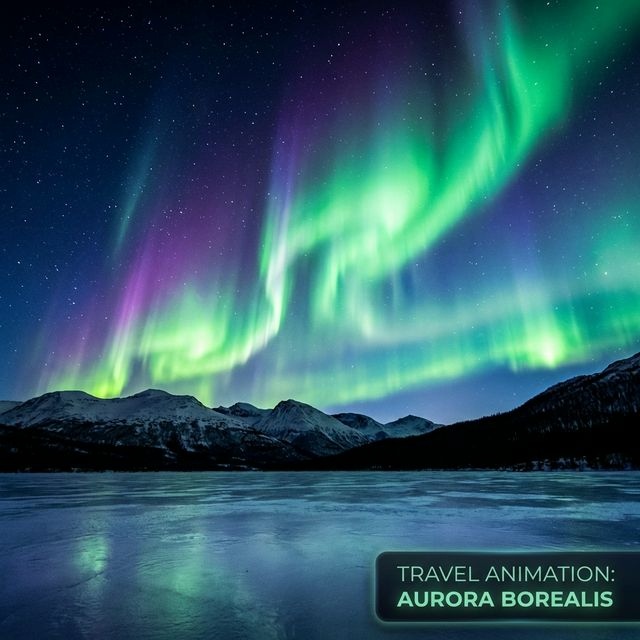
A travel blogger posts a photo of the Northern Lights (Aurora Borealis). By using the **ai image animator**, they make the lights shimmer and dance across the sky. This post gets 3x more shares than a static photo because it captures the *experience* of being there, not just the sight.
Wedding Photography
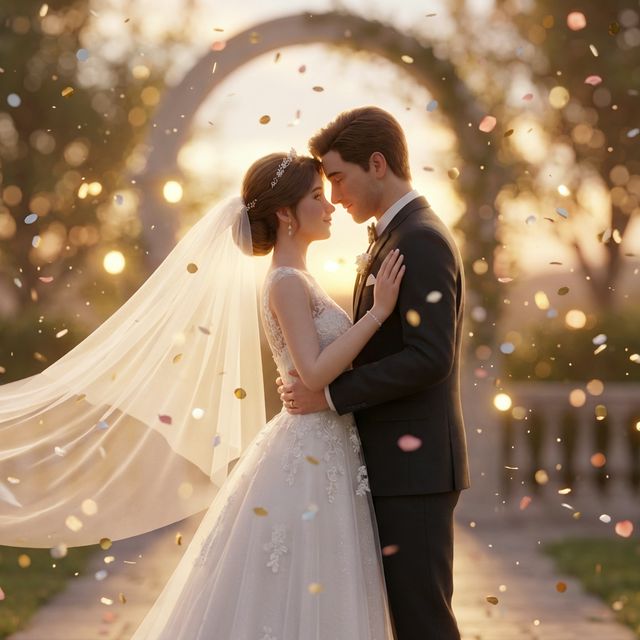
Photographers offer premium "Living Albums" as an upsell. They take the formal portrait of the bride and groom and animate the veil blowing in the wind or the confetti falling in slow motion. This differentiates them from competitors and allows them to charge a premium for "Magical" edits.
Real Estate Marketing
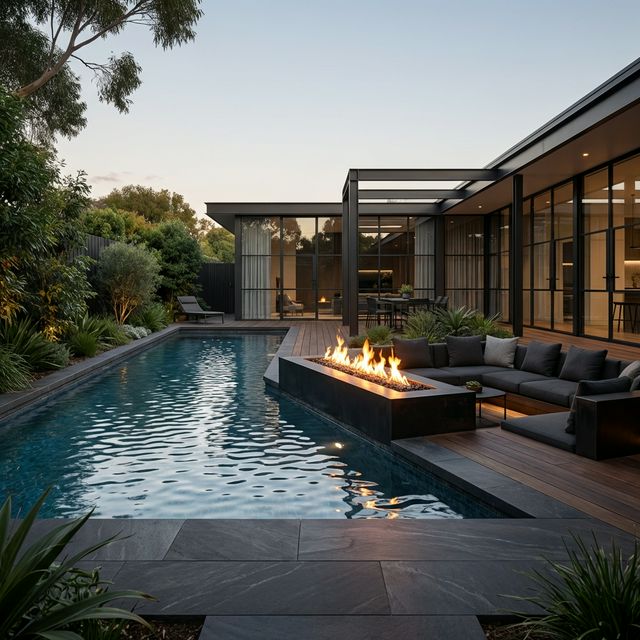
Listings with video get more leads. An agent takes a photo of a luxury home's backyard pool. They animate the water rippling and the fire in the fire pit. It creates a cozy, inviting atmosphere ("Hygge") that a static wide-angle shot lacks.
Digital Art & NFT
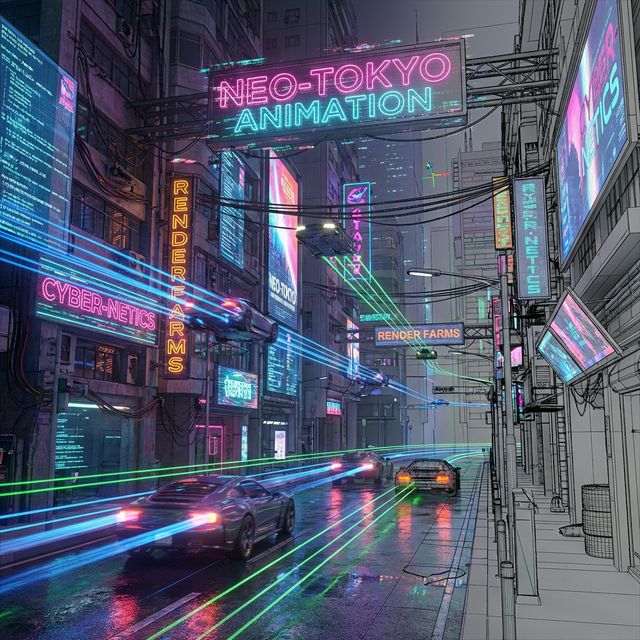
Artists use the tool to turn their static 2D illustrations into "Motion Art." A cyberpunk city drawing becomes alive with moving neon signs and flying cars (using motion paths), increasing its value as a digital collectible.
What Users Are Saying
The world is moving.
Miguel R.
Travel Blogger, 1M Followers
“My Northern Lights photos now shimmer. Engagement tripled. Followers think I shot video.”
WeddingPro_Amy
Wedding Photographer
“Living photo albums with flowing veils and falling confetti. Brides pay 3x for the premium package.”
Real_Estate_Dave
Luxury Realtor
“Pool water and fireplace flames move in my listings. Clients feel the 'livability' instantly.”
Troubleshooting Common Issues
The "Rubber Band" Effect
This happens when "Boomerang" mode is selected for water. Switch to "Blend" loop mode.
The "Melting Rock"
You missed an anchor point. Go back and use the "Freeze Brush" to paint over the specific rock that is moving. Be generous with the freeze zone.
The "Warped Face"
Ensure no motion arrows are near the face. Freeze the entire person. Image animation works best on backgrounds, not foreground portraits.
Frequently Asked Questions about AI Image Animator
How the AI Image Animator Transforms Still Photography into Living Media
From Frozen Moments to Flowing Scenes
Photography captures a single instant, but viewers often wish they could see what happened next. The ai image animator built into FlowVideo addresses that gap by synthesizing plausible motion from a lone photograph. Upload a landscape, a product shot, or an old family portrait, and the tool analyzes depth layers, texture boundaries, and lighting cues to generate frames that never existed in the original capture. Water begins to cascade, clouds drift across the horizon, and candle flames flicker with realistic physics. The output is a looping video file that preserves the composition of the source image while adding continuous, natural movement to selected regions.
Directing Motion with the Brush and Anchor System
What separates this ai image animator from a simple filter is granular directional control. The Motion Brush lets you paint velocity vectors directly onto the canvas. Draw short strokes near a riverbank to simulate friction, longer strokes in the center for faster current, and curved paths where the water bends. The Anchor tool then locks every element you want to remain static, such as rocks, buildings, or people, preventing the warping artifacts that plague automated solutions. Together, these two controls let you choreograph precisely which pixels move and which stay fixed, producing results that look intentional rather than algorithmic.
Practical Gains for Content Creators and Marketers
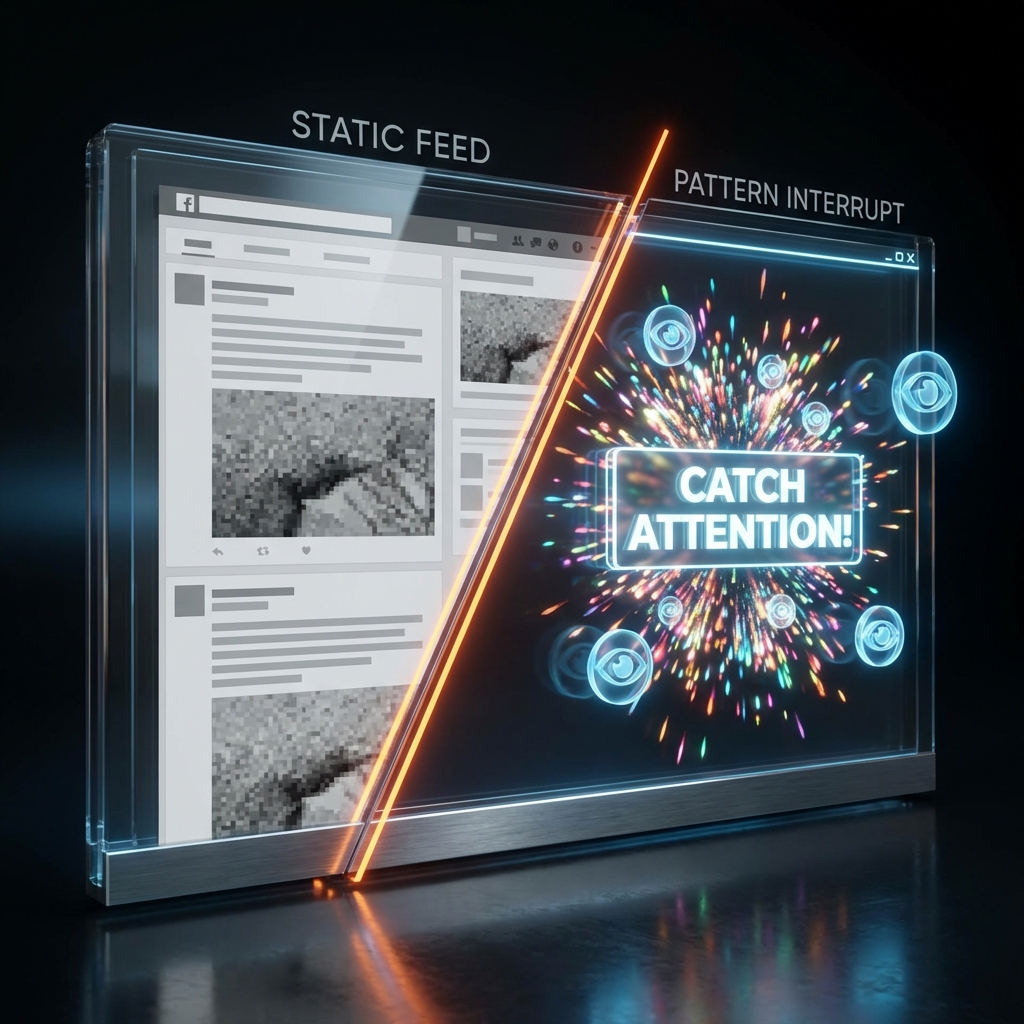
Subtle motion in a social media post breaks scroll blindness and increases dwell time, a ranking signal that platforms reward with wider distribution. E-commerce teams use the ai image animator to add rising steam to a coffee mug or a gentle breeze to a fabric swatch, giving shoppers a sensory preview that static images cannot deliver. Real estate agents animate pool water and fireplace flames to convey atmosphere in listing photos. Wedding photographers offer living portrait albums as a premium upsell. In each scenario, the animated output is a lightweight MP4 or WebM loop, typically under two megabytes, so it loads fast and does not penalize page speed scores.
Depth Estimation and In-Painting Under the Hood
Realistic photo animation requires more than pixel shifting. FlowVideo employs monocular depth estimation to separate foreground from background, ensuring that distant clouds move slower than nearby waves through parallax. When an object shifts position, in-painting fills the newly exposed area with plausible texture so no black voids or tearing artifacts appear. These processes run server-side, meaning you get professional-grade output without installing heavy desktop software. The entire workflow, from upload to exported loop, typically finishes within seconds on a standard browser.
Choosing the Right Loop Style for Your Subject
FlowVideo offers three loop modes, and selecting the correct one matters. Blend mode dissolves the last frame into the first, ideal for continuous flows like rivers, smoke, or drifting fog. Boomerang mode plays forward then reverses, suited for oscillating subjects such as swaying trees or a flickering candle. Circle mode rotates textures along a radial path, perfect for stirring liquids or spinning particles. Pairing the right loop with appropriate speed settings produces a seamless animation that viewers can watch indefinitely without noticing a repeat point, which is exactly what makes this format so engaging on feeds and landing pages.