
Product Video Maker
E-commerce Video Generator
A photo says "Look at me." A video says "Buy me." In e-commerce, static images are losing to dynamic video content. FlowVideo AI's Product Video Maker transforms your existing URL or JPGs into cinematic product showcases, erasing the "Tactile Gap" and boosting conversion rates by up to 80%.
Built for transparent creative workflows
Product Video Maker
Cost: 30 Credits
Or upload product image
PNG/JPG with white background works best
Product Video Maker
Upload a product image or paste a URL to create a cinematic showcase video.
Introduction
The biggest barrier to buying online is that you can't touch the product. You can't turn it over. You can't see how the light hits the texture. This is the "Tactile Gap." Big brands solve this with $50,000 studio shoots—spinning turntables, robotic camera arms, and controlled lighting. Small brands rely on flat, white-background JPEGs. And they lose sales because of it.
FlowVideo AI's Product Video Maker bridges this gap. It democratizes the "Apple Style" product reveal. By using AI to separate your product from the background and placing it in a dynamic 3D virtual environment, we create the illusion of a high-end studio shoot. You upload a phone photo of a shoe; we output a 4K video of that shoe floating in a neon city, or resting on a wooden table with sunlight dappling through leaves. It turns "Inventory" into "Desire."
Why Use a Product Video Maker? (Deep Dive)
The "Tactile Gap" (Confidence)
The Technology: Photorealistic Compositing
Background Removal 2.0 (Matting)
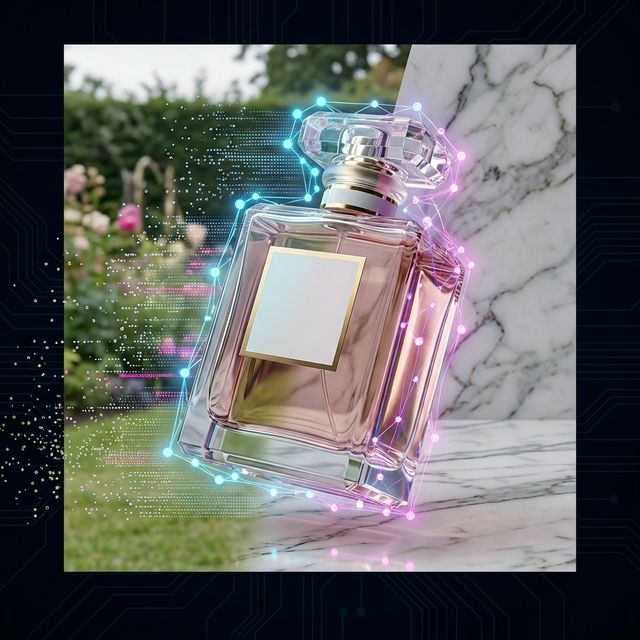
Standard tools leave jagged white edges. The Tech: We use "Alpha Matting" neural networks. It understands semi-transparent objects like glass bottles or hair. The Result: It perfectly extracts your product, keeping the natural reflections and transparency, so it looks realistic when placed on a new background (e.g., seeing the new background through the glass bottle).
Harmonization (Relighting)
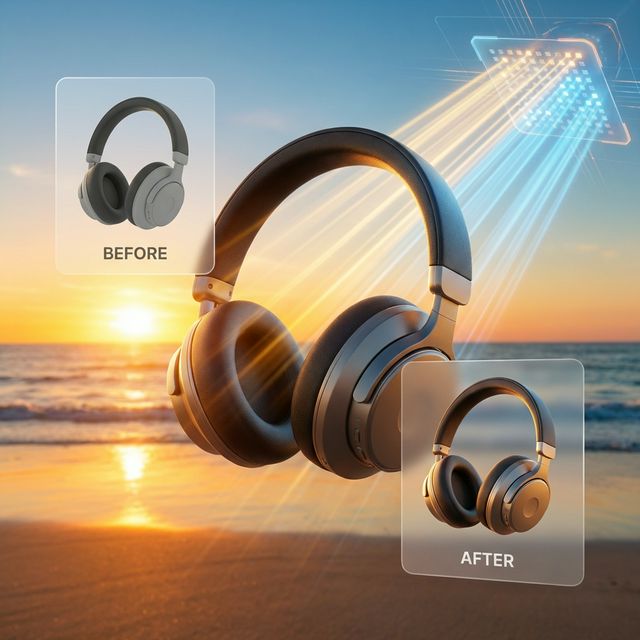
If you put a brightly lit studio photo into a dark sunset background, it looks fake. The Magic: Our "Relighting" engine analyzes the light source of the background (e.g., sun on the left). It then digitally "Relights" your product, adding consistent shadows and highlights. It casts a shadow on the floor that matches the product shape. The Impact: This "Integration" is what separates a cheap Photoshop job from a professional composite.
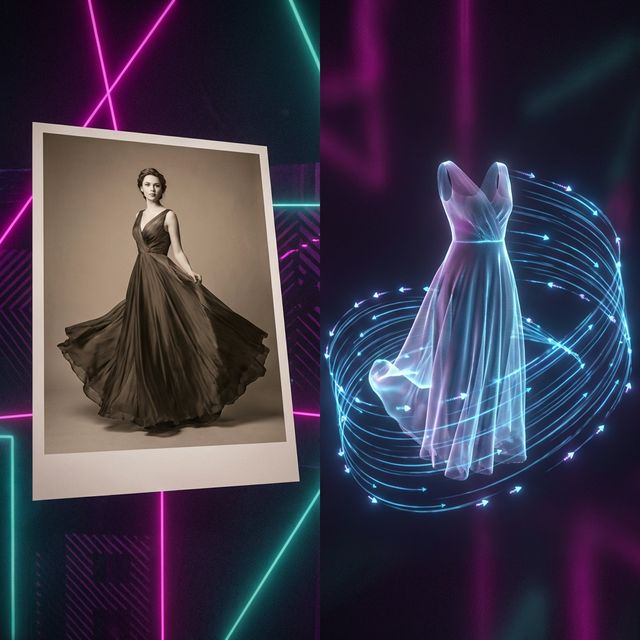
Generative Motion (Video Inpainting)
The Action: You have a photo of a dress. You want it to wave in the wind. The AI: Our "Image-to-Video" model identifies the fabric cloth simulation. It animates the pixels to ripple and flow, turning a still photo into a "Cinemagraph."
Step-by-Step Guide: Your Virtual Studio
Step 1: Upload Product
Source: Upload a high-res PNG/JPG or paste your Shopify/Amazon URL (we scrape the images). Requirements: Clean lighting is best. White background is easiest for the AI to extract.
Step 2: Choose the "Scene"
Studio: "Podium," "Neon Lights," "Minimalist Concrete." (Focus on product). Lifestyle: "Living Room," "Camping," "Beach." (Focus on usage). Abstract: "Floating in clouds," "Splash of water." (Focus on vibe).
Step 3: Animation Style
Orbit: The camera circles the product. Zoom: Slow push in (dramatic). Pan: Sliding sideways (good for text reveal). Explode: (Pro) For tech products, the parts hover apart to show the internals (Requires multiple images).
Step 4: Add Marketing Layer
Text: "New Arrival." "50% Off." Music: Choose an upbeat "Shopping" track. Brand: Add your logo watermark in the corner.
Step 5: Render and Resize
Format: Batch export. 9:16 for TikTok/Reels. 1:1 for Instagram Carousel. 16:9 for Website Header.
Comparison: Product Videography
| Feature | Professional Studio Shoot | FlowVideo AI Maker |
|---|---|---|
| Cost | $5,000 / day | $20 / month |
| Time | 2 Weeks | 2 Minutes |
| Props | Physical purchase | Virtual Infinite |
| Location | Renting required | Virtual Infinite |
| Lighting | Expert Skill | Auto-Match |
| Editing | Manual | Auto-Template |
Industry Use Cases
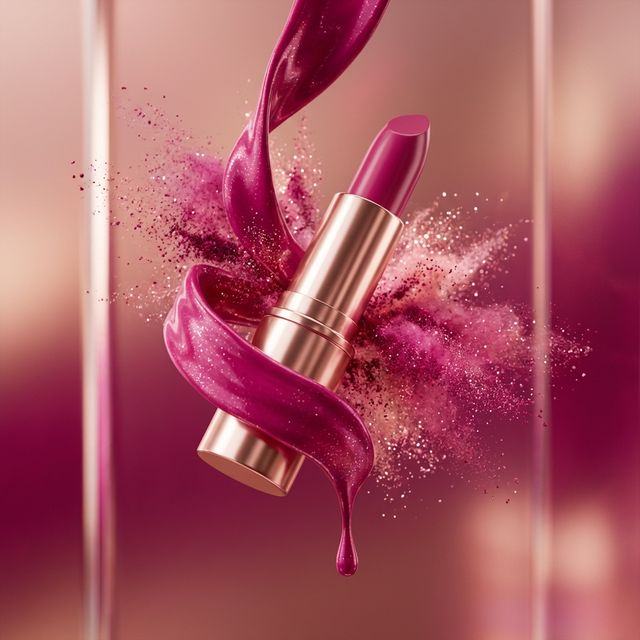
Beauty & Cosmetics
Concept: Texture Reveal. Visual: A smear of lipstick. Why AI: The AI can animate the liquid "drip" or the powder "explosion" which is insanely hard to film practically (requires macro lenses).
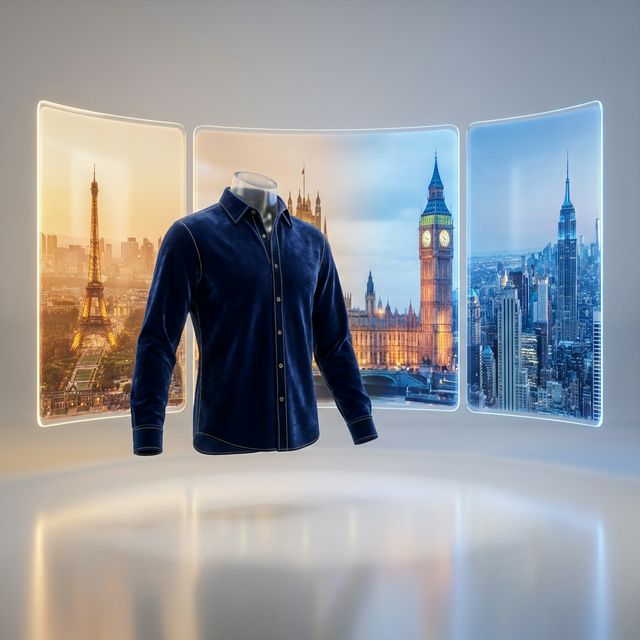
Fashion & Apparel
Concept: The Lookbook. Visual: Model wearing the shirt. Background changes from "Paris" to "London" to "NY." Why AI: Travel costs zero. One shoot, global campaign.

Consumer Electronics
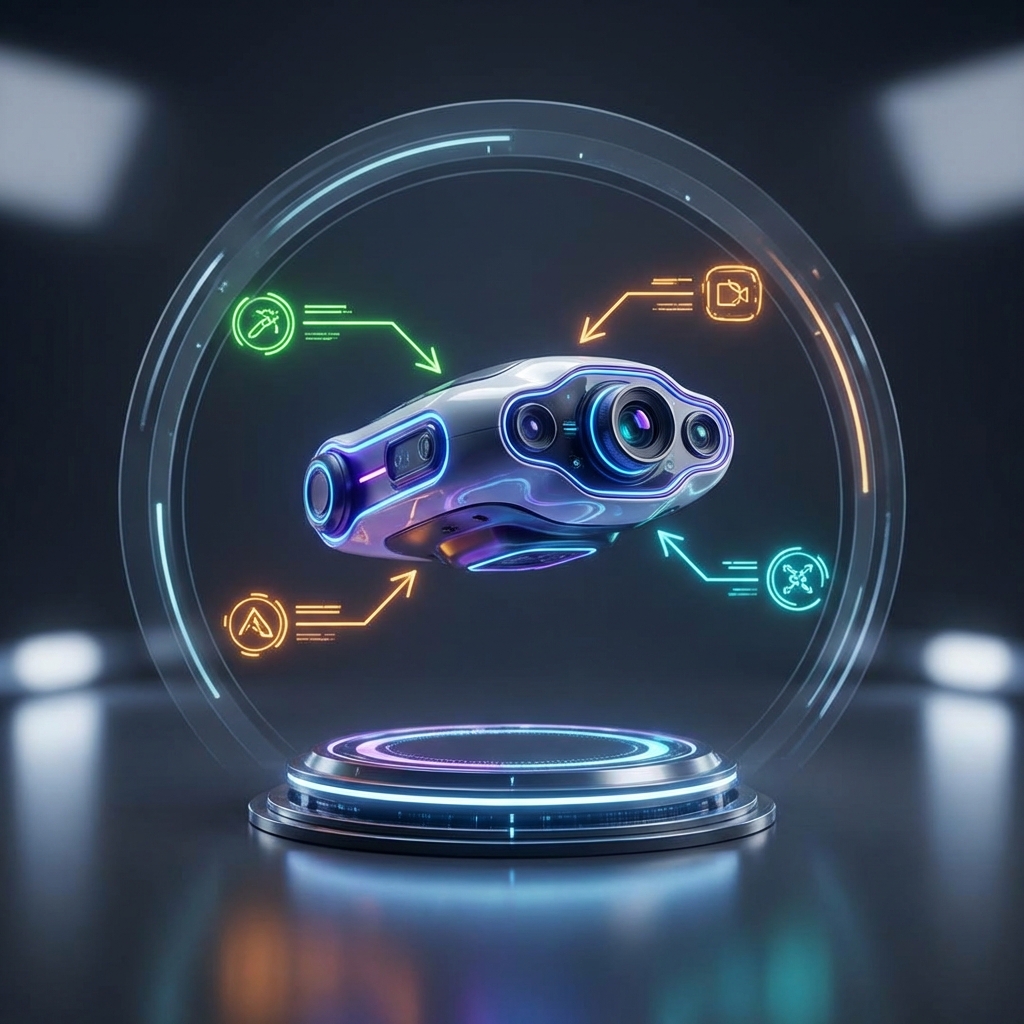
Concept: Feature Callout. Visual: Headphones floating. Text lines point to "Noise Cancelling Mic" and "20h Battery." Why AI: The clean, techy, 3D aesthetic matches the hardware perfectly.
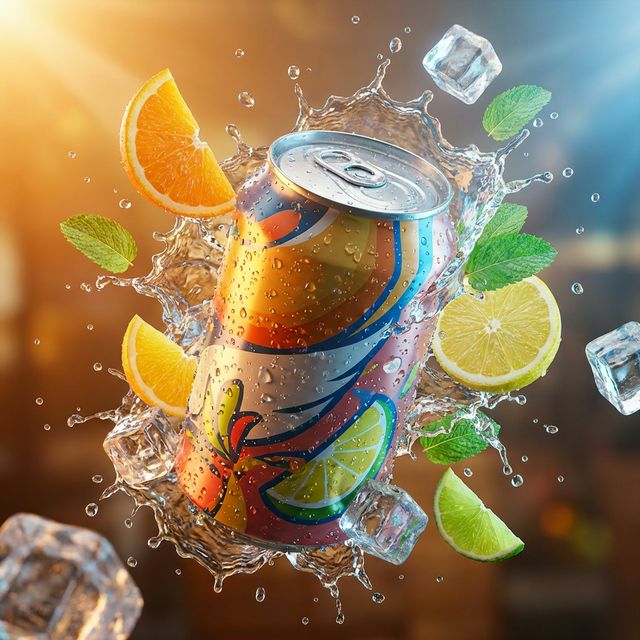
Food & Beverage
Concept: Taste Appeal. Visual: Soda can with condensation. Ice cubes falling. Why AI: Filming ice cream melting is a nightmare. Simulating it is easy.
Verify the workflow before generation
Review the inputs, model, estimated credit cost, output type, and limitations shown on this page.
Troubleshooting: Product Video Issues
"Floating" Product
Enable "Drop Shadow" or "Reflection" in the scene settings.
Fake Lighting
Use "Auto-Harmonize" to dim the product to match the background.
Blurry
Use built-in "4K Upscaler" before generating.
Wrong Scale
Use the "Scale Slider" to size it correctly relative to the props.