Product Demo Video Maker
SaaS & Software Demos
If a picture is worth a thousand words, a demo is worth a thousand meetings. For software companies, the demo is the product. It is the moment of truth. Use our product demo video maker to create sleek, edited, and annotated walkthroughs that convert visitors into users without needing a sales call.
Built for transparent creative workflows
Product Demo Maker
Cost: 50 Credits
Upload Screen Recording
Or use our Chrome Extension to record
Product Demo Maker
Upload a screen recording and add AI voiceover to create a polished demo video.
Introduction
"Sign up for a free trial." Most users don't do it. Why? Because it's work. They have to enter their email, set a password, and figure out the UI. They want to see what's inside before they commit. This is where the Product Demo Video (or Explainer Demo) becomes critical. It gives the "Aha Moment" upfront.
Traditionally, making a demo meant using OBS or Loom, recording your screen, stumbling over your words, re-recording, realizing your mouse movement was jerky, and ending up with a 10-minute boring video that nobody watches.
FlowVideo AI's Product Demo Video Maker automates the polish. It records your screen, but then it separates the mouse, the UI, and the voice. It allows you to "Smoothing" the mouse path (removing the jitters). It allows you to "Re-Type" the text in the input fields during the edit. It allows you to swap the voiceover instantly. It turns a messy screen recording into a surgical marketing asset.
Why Use a Product Demo Video Maker?
The "Cognitive Walkthrough" (Clarity)
The Technology: Screen Understanding
DOM Awareness (HTML Recording)
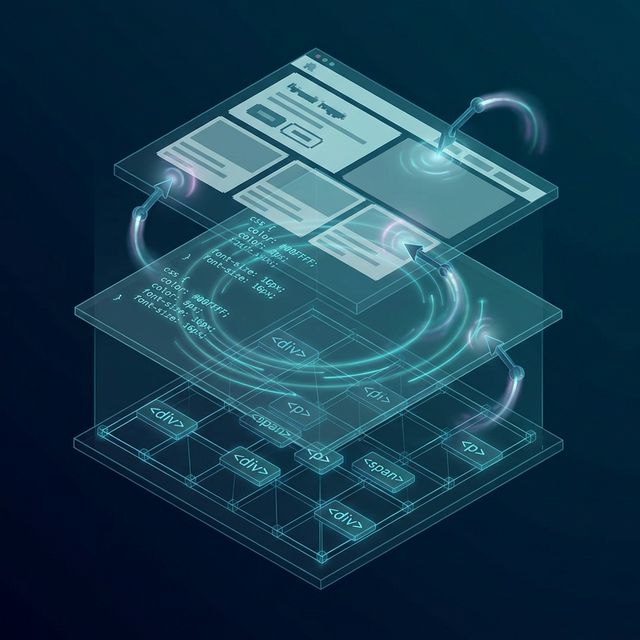
We don't just record pixels; we record the HTML structure (DOM). The Magic: This allows us to "Edit" the website after recording. Example: You recorded the demo and the button said "Submit". Marketing wants it to say "Launch". You can simply type "Launch" in our editor, and the video updates the button text retroactively without a reshoot. It is "Deep Fake" technology for UI.

Mouse Smoothing Algorithms
Human hands shake. Bezier Curves: We replace your jagged mouse path with a perfect mathematical curve. The cursor glides elegantly from Point A to Point B. Click Effects: We add a subtle "Pulse" animation (Yellow Halo) on every click to provide visual feedback.
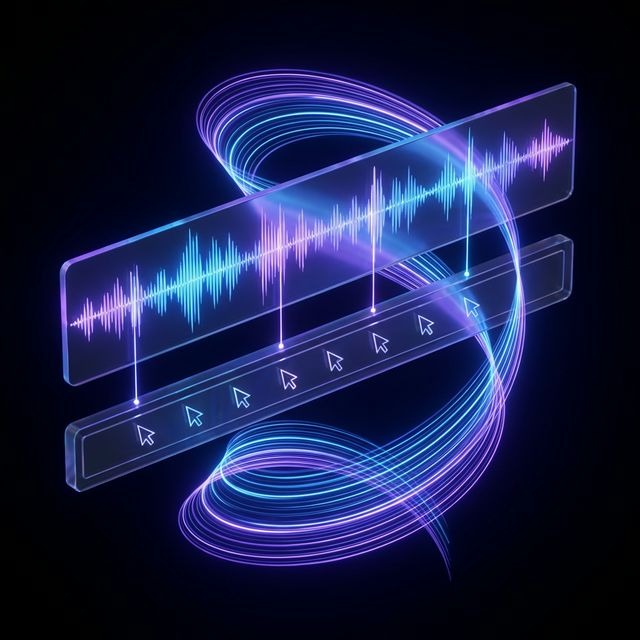
Audio-Video Sync (Voice)
The Struggle: Matching the voice "Click here" with the visual click. The Sync: Our AI listens to the word "Here" in your script and aligns the mouse click frame to that millisecond. Perfect sync, automatically.
Step-by-Step Guide: The Perfect Walkthrough
Install the Recorder
Extension: Use our Chrome Extension to capture the tab. Resolution: Set to 1080p (High DPI) so text is crisp. Cleanup: The extension automatically hides your bookmarks bar and chaotic desktop icons for a clean look.
Record the "Golden Path"
The Script: Don't wing it. Write a script first (Use our Script Generator). The Action: Perform the actions slowly. Don't rush. The video speed can be sped up later. Tip: Don't speak while recording. It's better to add the voiceover after so you can focus on smooth mouse movement.
Edit and Annotate
Zoom: Add "Keyframes" to zoom in on complex charts. Callouts: Drag specialized stickers ("Arrow", "Checkmark") to point at things. Text Cards: Add "Section Title" cards (e.g., "Feature 1: Reporting") to break up the flow.
Add AI Voiceover
Select Voice: "Tech, Male, Calm" or "Friendly, Female, Energetic." Sync: The AI distributes the speech across the timeline to match your clicks.
Background & Device Frame
Polish: The video looks raw. Frame: Put the video inside a "Macbook Pro" or "iPhone 15" device frame. Background: Add a blurred gradient background behind the device. This makes it look like a high-end commercial.
Comparison: Demo Tools
| Feature | Loom / Screenflow | FlowVideo AI Demo Maker |
|---|---|---|
| Recording | Standard Pixel | DOM / HTML Aware |
| Editing | Manual Cut | Text-Based Edit |
| Zooming | Manual Keyframes | Auto-Follow Mouse |
| Voice | Your Mic | AI Professional Voice |
| Mouse | Jerky | Smoothed |
| Update | Re-Record | Edit Text Only |
Industry Use Cases
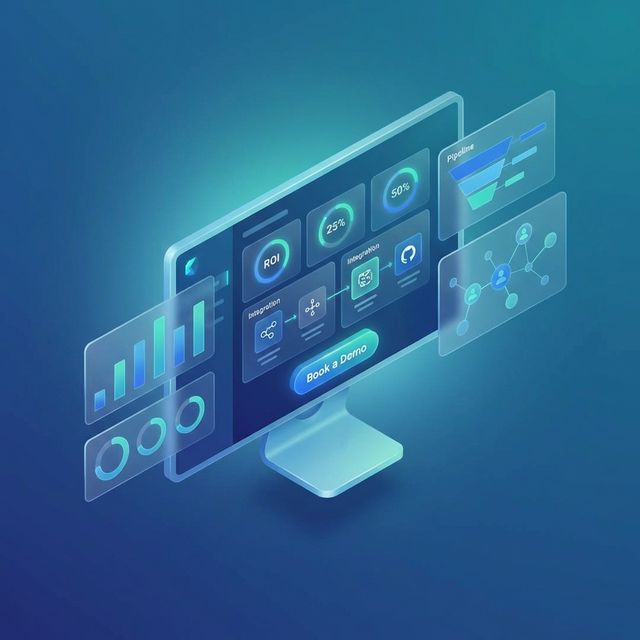
SaaS (B2B)
Concept: "The Dashboard Tour." Format: 2 Minutes. Content: Show the ROI dashboard. Show the 1-click integration. Goal: Get them to book a sales demo.
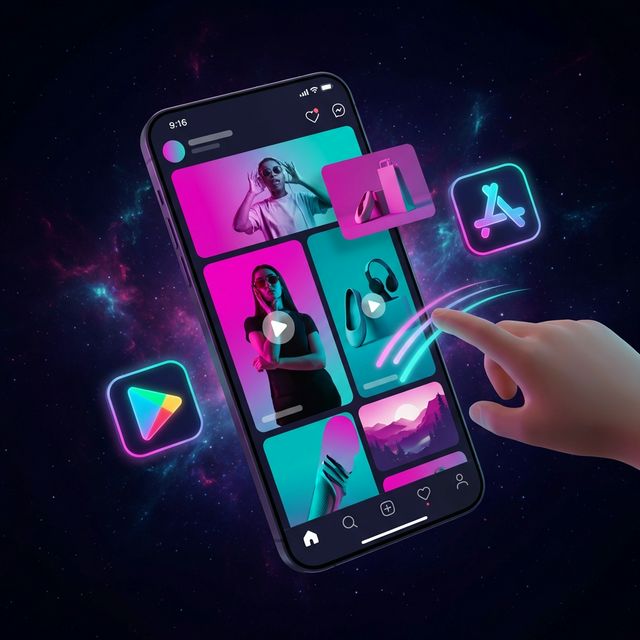
Mobile Apps (B2C)
Concept: "The User Flow." Format: Vertical (9:16) inside an iPhone frame. Content: Swiping through the feed. Liking a post. Goal: App Store Install.
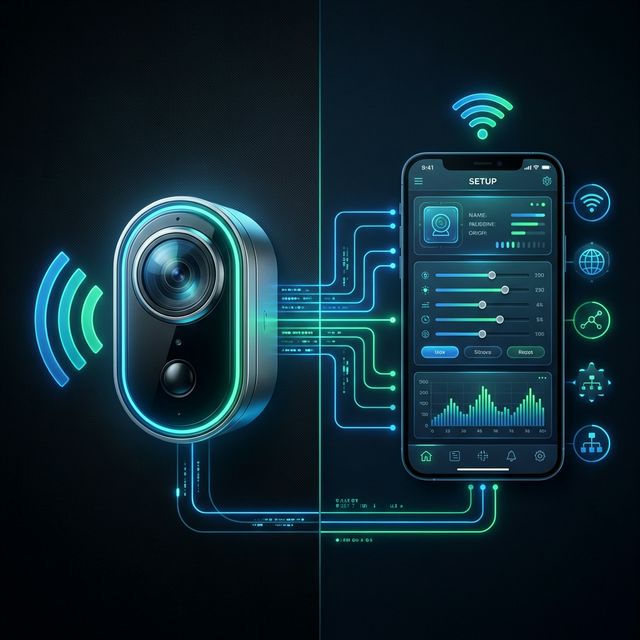
Hardware (IoT)
Concept: "The App Setup." Format: Mixed Media. Content: Split screen showing the physical device (camera) connecting to the App (screen recording). Goal: Reduce support tickets for setup.

Internal Training
Concept: "How to Expense." Format: Long-form. Content: Step-by-step guide on using the new ERP system. Goal: Compliance.
Verify the workflow before generation
Review the inputs, model, estimated credit cost, output type, and limitations shown on this page.
Troubleshooting: Why Demos Fail
Boring
Use "Speed Ramp" to fast-forward through loading screens or typing (4x speed).
Confusing
"Cut" all features except the "Big 3." Save the rest for the docs.
Unreadable
Use "Auto-Zoom" extensively. Never show the full screen for more than 3 seconds.
Low Production
Replace your mic audio with "AI Studio Voice" for crisp clarity.