
Create Video Presentation with AI
Slides to Video
Sharing a PDF file is passive. Sharing a Video Presentation is active. A PDF is ignored; a video is watched. Use our ai create video presentation toolkit to transform your static slides into a narrated, engaging video experience that can be watched anytime, anywhere, scaling your ability to pitch, teach, and persuade.
Built for transparent creative workflows
Video Presentation
Cost: 60 Credits
Upload Your Slides
.pptx, Google Slides link, or PDF
Slides to Video
Upload deck → Select presenter → Get professional video presentation
Introduction
The "Investor Pitch." The "Quarterly Review." The "Webinar."
These formats rule the business world. But coordinating them is a nightmare. You have to schedule a Zoom call, hope everyone shows up, pray your internet doesn't cut out, and manage "Can you see my screen?" issues.
Asynchronous Video Presentations are the solution. But recording yourself presenting is awkward. You stumble over words. The lighting is bad. Your dog barks. You have to do 10 takes to get one good one.
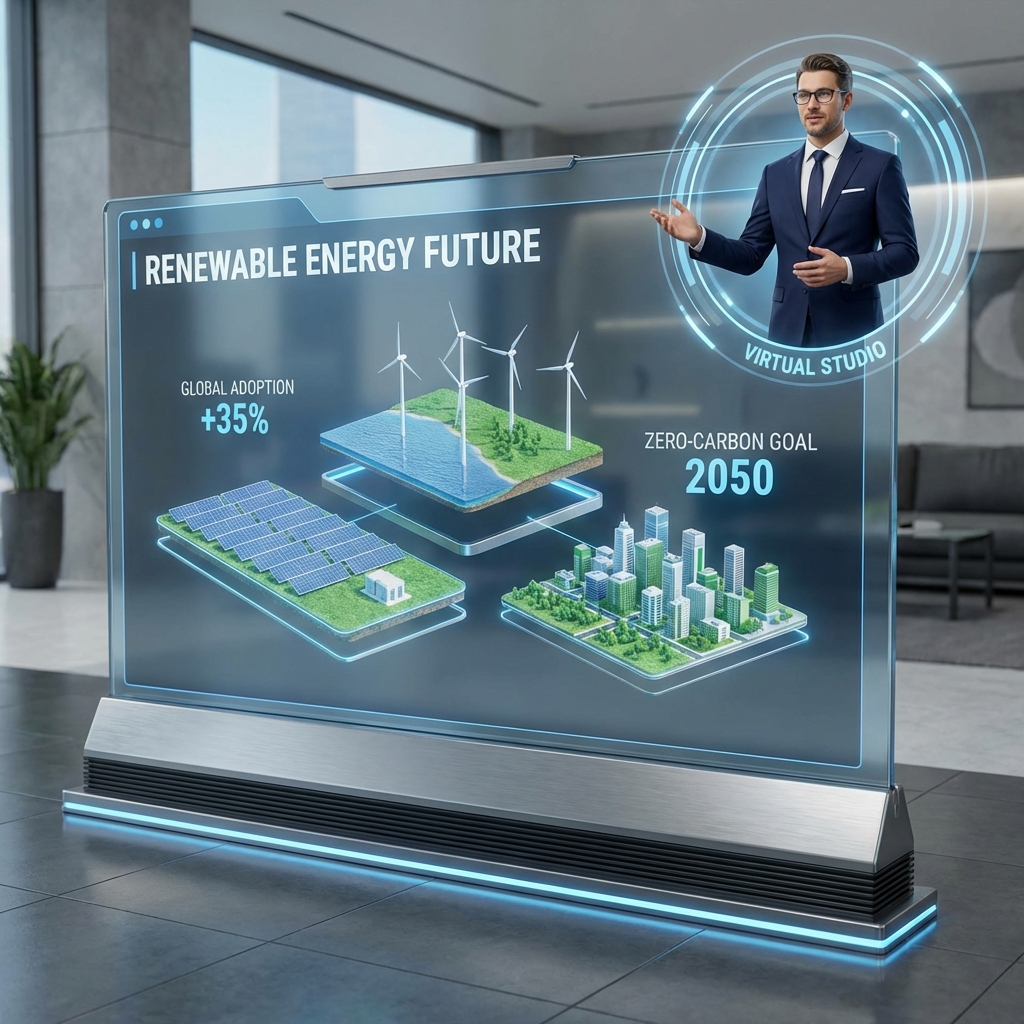
FlowVideo AI's Video Presentation Maker removes the "Performance Anxiety." You upload your slides. You type what you want to say for each slide. Our AI Avatar presents it for you. It looks like you hired a professional TV presenter to deliver your deck. You get a perfect take, every time. You can update the numbers next month by editing text, not re-recording video.
Why use an AI Video Presentation?
The "Perfect Pitch" Guarantee

The Technology: Slide Intelligence
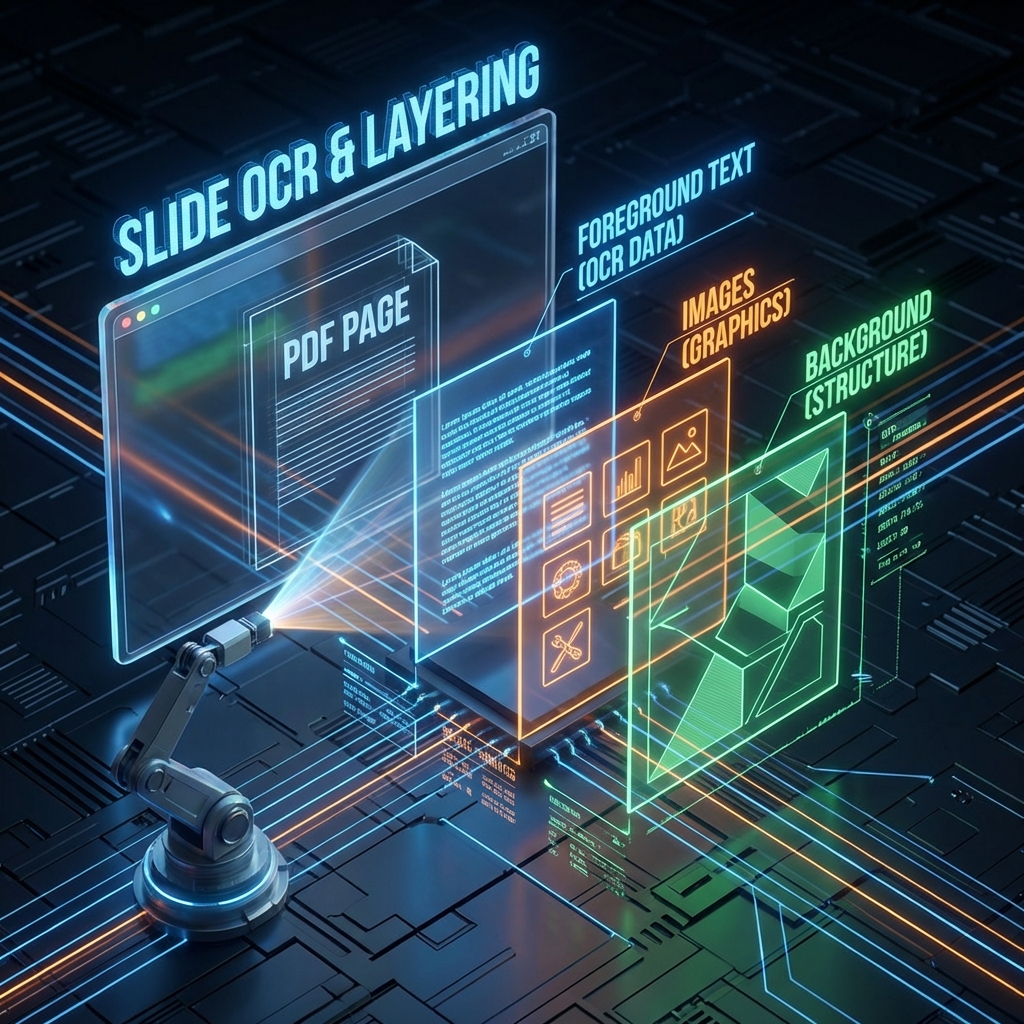
Optical Character Recognition (OCR) & Decomposition
When you upload a PDF/PPTX: The Scan: The AI identifies text blocks, images, and charts using Computer Vision. The Separation: It separates the "Foreground" (Text) from the "Background." This allows it to animate the text (e.g., Fade In bullet points one by one) even if your original PDF was flat. It turns a static image into layers.

Speaker Note Extraction
The Context: Did you write notes in the "Speaker Notes" section of PowerPoint? The AI automatically imports strictly these as the voiceover script. The Improvisation: If you have no notes, the AI reads the slide text and "Improvises" a script. It adds connective tissue ("As you can see here...", "Moving on to the next point...") to make it flow like a real speech, not a robot reading a list.

Avatar Compositing (The "Weatherman" Effect)
Green Screen: The avatar is generated on a transparent layer. Placement: The AI analyzes the slide layout ("Saliency Mapping"). If the text is on the Left, it places the Avatar on the Right. It dynamically moves the avatar slide-by-slide to avoid covering up your important data. It never blocks the chart.
Step-by-Step Guide: The Perfect Webinar
Upload Source
Format: PowerPoint (.pptx), Google Slides (Share Link), or PDF. Parsing: The system breaks the file into individual "Scenes" on the timeline. One slide = One scene.
Select the Presenter
The Vibe: "Executive" (Suit, older, serious) for Board Meetings. "Creative" (T-shirt, younger, energetic) for Design Reviews. "Medical" (White Coat) for Healthcare. The Voice: "Deep American Male." "British Female." "Australian Accent." Match the voice to your brand identity.
Edit the Script
Per-Slide View: You see Slide 1 and a text box. Editing: Type exactly what you want the avatar to say. Use `[Pause 0.5s]` tags for dramatic effect. Pronunciation: Use the "Phonetic Editor" to ensure it says "SaaS" as "Sass" and not "S.A.A.S."
Add Interactivity (The Conversion Layer)
Buttons: Add a clickable "Book a Meeting" button that appears on Slide 10 (The Ask). Forms: Add a "Collect Email" gate before Slide 1, turning your presentation into a Lead Magnet.
Generate & Share
Rendering: It takes about 1 minute of render time per 1 minute of video. Sharing: You get a hosted landing page link (`flowvideo.com/v/your-pitch`) or an MP4 download to upload to YouTube/LinkedIn.
Comparison: AI vs. Screen Recording (Loom)
| Feature | Loom / Zoom Recording | FlowVideo AI Presentation |
|---|---|---|
| Production Value | Low (Messy room background) | High (Virtual Studio) |
| Editing | Hard (Must re-record) | Easy (Edit text) |
| Language | Your language only | 50 Languages (Translation) |
| File Size | Heavy | Light (Streaming) |
| Consistency | Variable | Perfect every time |
Industry Use Cases

Startup Founders (Fundraising)
Asset: "Seed Round Pitch." Use case: Send the video link to VCs *before* the meeting. Benefit: "Pre-selling." The VC enters the meeting already knowing the basics (Product, Market, Team), so you can spend the valuable meeting time discussing Strategy and Vision, not explaining what the product does.
Real Estate Agents
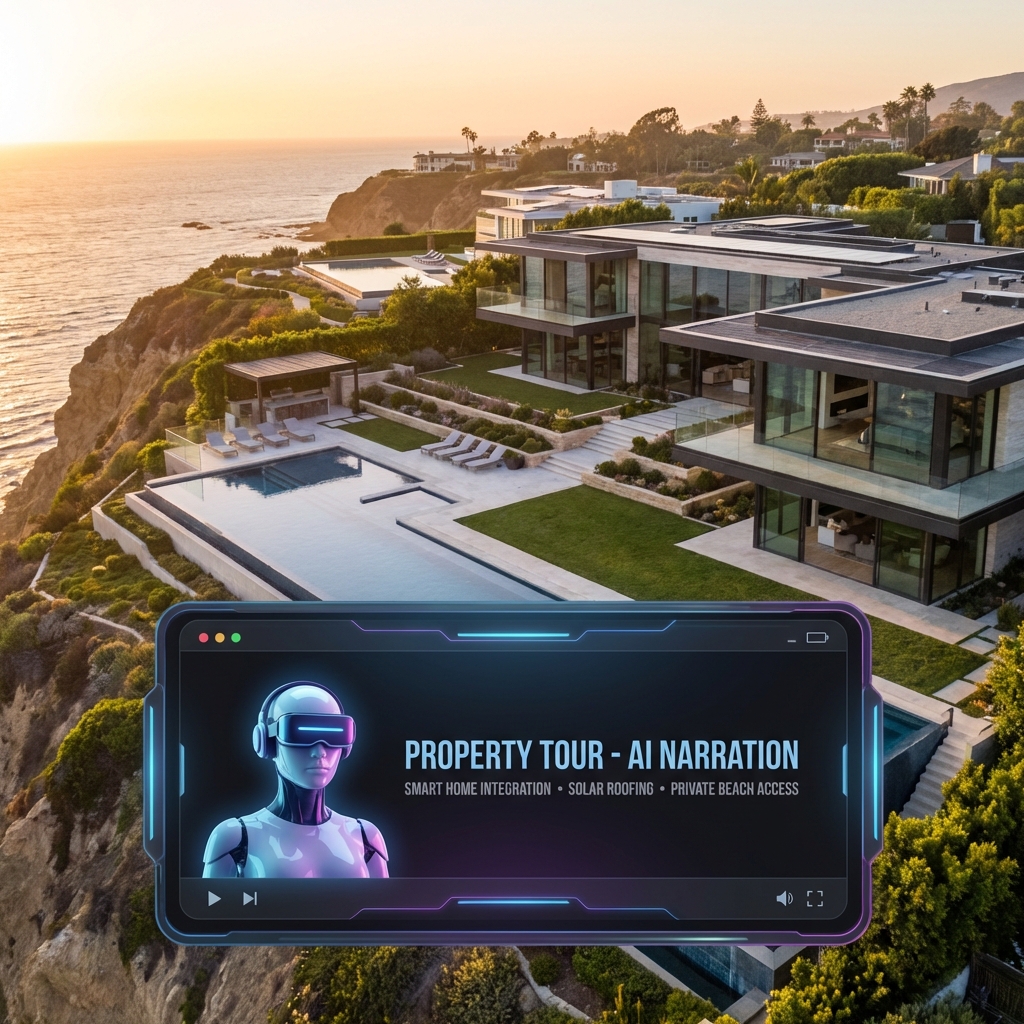
Asset: "Listing Tour." Use case: Slideshow of property photos turned into a video. Benefit: The agent's AI avatar narrates the features of each room ("Notice the granite countertops") 24/7 without the agent needing to be there physically.

University Researchers
Asset: "Conference Poster." Use case: 5-minute summary of the research paper. Benefit: Allows the researcher to "present" at virtual conferences in multiple time zones simultaneously without staying up all night.
HR Departments
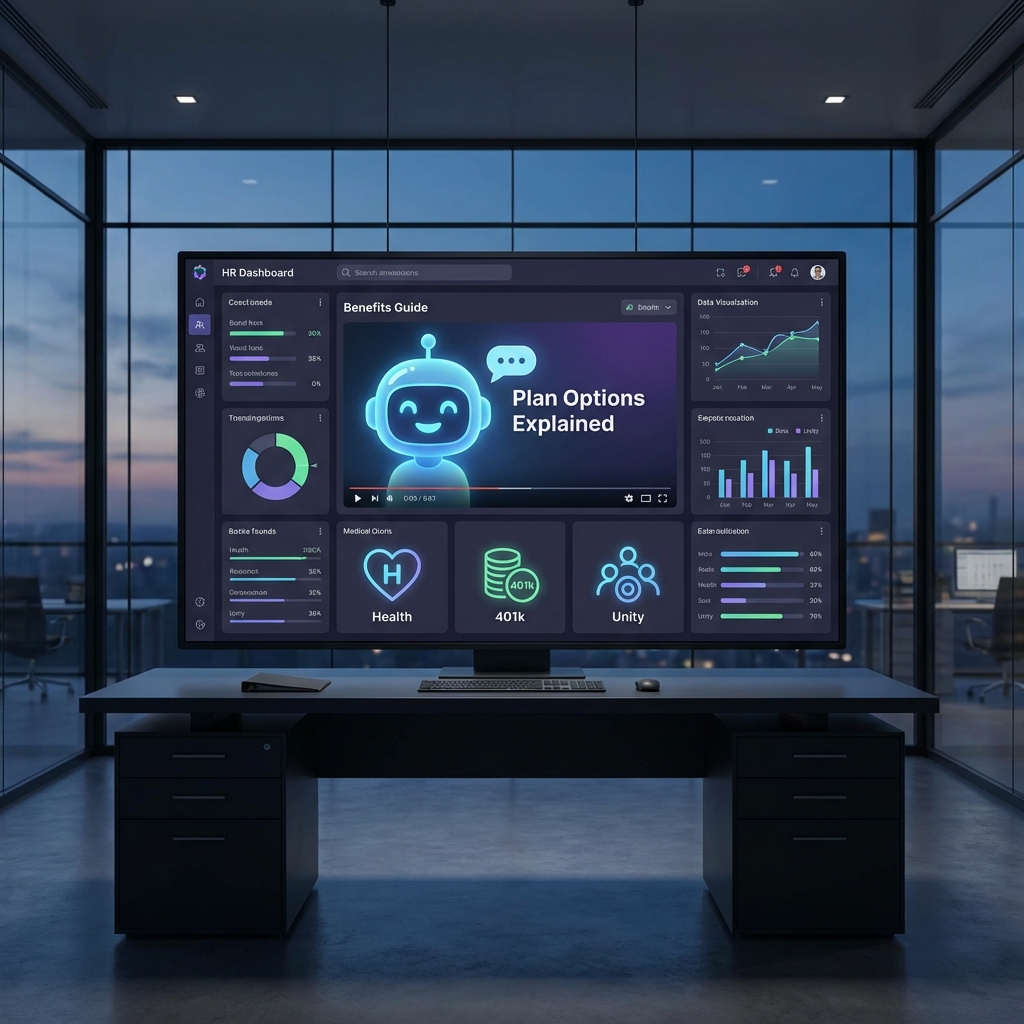
Asset: "Benefits Enrollment Guide." Use case: Explaining the new 401k plan options. Benefit: Consistent explanation. No "he said, she said" confusion about coverage details. Everyone gets the same legal disclaimer.
Verify the workflow before generation
Review the inputs, model, estimated credit cost, output type, and limitations shown on this page.
Troubleshooting: Common Presentation Issues
"Wall of Text"
Use the "Auto-Summerize" feature to turn paragraphs into bullet points.
Robotic Delivery
add [Smile] or [Serious] tags to the script to direct the avatar's face.
Boring Visuals
Use the "AI Background" tool to replace the white background with a subtle office loop.
User Drop-off
Check the "Heatmap" analytics to see where people stop watching and trim that slide.